CirrusCentral Manager User Guide

Version: MN011056A01-D, System Release: AN2025.HS, AN2025.1, AN2024.HS, AN2024.1, Release Date: February 2026


What’s New

Legal and Support

Recently Viewed Topics

About CirrusCentral Manager User Guide

This manual provides information about the CirrusCentral Manager, which is a cloud-based system management tool that enables you to remotely manage your radio system.

Related Information

Related Information Purpose
Standards and Guidelines for Communication Sites Provides standards and guidelines that should be followed when setting up a Motorola Solutions communications site. Also known as R56 manual.
System Overview and Documentation Reference Guide Provides an overview of the new features, technical illustrations, and system-level disaster recovery for the ASTRO® 25 radio communication system.
Dynamic System Resilience User Guide Provides information necessary to understand, operate, maintain, and troubleshoot the Dynamic System Resilience (DSR) feature that adds a geographically separate backup zone core to an existing zone core to protect against catastrophic zone core failures.

CirrusCentral Manager Description

CirrusCentral Manager is a cloud-based system management tool that enables you to remotely manage your radio system. You can log on to the CirrusCentral System Manager from your company-issued devices (such as laptop or mobile devices).

System Monitoring Screen

The System Monitoring screen, allows you to access the information about the topology, alarms, events, performance, affiliations and channels.

You can access the System Monitoring screen by clicking the icon.

Overview Tab

The Overview tab, displays the health status of the sites in a particular zone. The different colors displayed on the site wheel correspond to the following highest alarm severity at the site:

  • Red – critical
  • Yellow – major
  • White – no alarms

By default all sites, including console sites and conventional subsystems, are displayed on the screen. To display trunking RF sites only, you can disable other types of sites on the panel located below the site wheel.

For Dynamic System Resilience (DSR) systems, information about operational state for each core (primary and backup) is displayed.

It is possible to have different services active in different cores (primary or backup). For example, you can have Provisioning Manager connection in one core and Packet Data Gateway in the other. However, in the Overview tab, only the status of the Zone Controller is displayed. If you want to check the status of another service (for example PDG), you need to click its corresponding core on the diagram to view the details..

If you want to access more information about a particular site with a critical or major alarm, you can click this site to open a side panel on the right side of the screen. The side panel displays the information about the alarms, events, performance, channels and configuration.

The TRENDS section of the Overview tab, also allows you to monitor the call activity and the most recent alarm that occurred in the zone. You can adjust the time range by using the Time range drop-down menu.

The LOAD section of the Overview tab also allows you to monitor the current load of the sites within a zone. The sites are ordered according to the following criteria:

  • The Cloud Trunking state

    Only available for systems with CirrusCentral Core fallback option.

  • The Not Wide Trunking state
  • The site load time (average of 30 minutes)
  • The average number of channels that are in use
  • The site name

You can change this setting by selecting Custom set and clicking Edit.

When the credentials are assigned to site devices, CirrusCentral Admin users can rediscover the sites by navigating to System Monitoring Overview, selecting a site, clicking the icon and selecting Rediscover Site.

The sites discovered by CirrusCentral Manager have additional capabilities. For more information, see Executing Remote Commands and Performing Management Operations on Individual Devices.

Topology Tab

You can use Topology tab to view your entire system hierarchy, navigate the system tree, and access information about the fault cause.

Alarms Tab

You can use the Alarms tab to access a list of all active alarms in the system.

You can filter the list of alarms by location and severity, or search for specific alarms by using the search feature.

You can reduce alarm flooding by grouping related items.

You can sort through alarms and events with predefined groups or your own customized groups.

Events Tab

You can use the Events tab to access a chronological list of the alarms and events that happened on the radio system.

Performance Tab

You can use the Performance tab to access the call activity and affiliations graphs.

Call activity graph shows the recent trend of active and busy calls in the system. You can use the Time range drop-down menu to choose the period of time for the displayed calls. You can choose between the last two minutes and the last hour.

Affiliations graph shows the number of radios and talkgroups on the particular sites.

Affiliations Tab

You can use the Affiliations tab, to check the talkgroup affiliation of radios and consoles.

You can use the Affiliations tab to search for your consoles, radios, and talkgroups position by using the consoles ID or alias.

You can also use the Affiliations tab to determine the last used site and talkgroup for the radios that are turned off or deregistered. The displayed time of the last radio activity is typically the time when the radio was deregistered, turned off or lost.

Channels Tab

You can use the Channels tab to monitor real-time call activity, trunking status, channel utilization and affiliations on your system.

The integrated channel faults feature enables you to instantly be alerted to potential channel issues.

The sites are ordered according to the following criteria:

  • The Cloud Trunking state
  • The Not Wide Trunking state
  • The site load time (average of 30 minutes)
  • The average number of channels that are in use
  • The site name

You can change this setting by selecting Custom set and clicking Edit.

Anomalies Screen

You can access the Anomalies screen by clicking the icon in the top right corner of the screen.

The Anomalies screen displays the number of anomalies discovered in the last 72 hours. The number of notified detections is limited to 50 most severe anomalies.

Note: After a system is connected, to get any notifications related to anomalies, the user must wait for about a month, for the system to collect enough data to baseline the correct system behavior.

After the system collects enough data, an onboarding icon and a tooltip are displayed.

The talkgroup anomalies are prioritized over other types of anomalies. The Anomalies screen lists a maximum of 10 talkgroup anomalies.

The following information is displayed for each anomaly:

  • Anomaly type (for example radio or talkgroup)
  • Anomaly severity determined by the color red, yellow, or blue (in descending order of severity)
  • Anomaly scope determined by the size of the anomaly icon

To see more information about a given anomaly, you can click the anomaly icon. The following information is displayed after clicking the anomaly icon:

  • Number and time of detections from the last 72 hours
  • Overview of a given anomaly
  • Possible causes and recommended actions
  • List of selected links to other CirrusCentral features that can be used to access more information about a given anomaly

Anomalies Management

You can manage each anomaly by performing the following actions:

  • You can acknowledge an anomaly by clicking Acknowledge.

    The acknowledged anomaly is no longer displayed on the Anomalies screen.

  • You can revert the acknowledgement of a given anomaly by clicking Revert Acknowledge.
  • You can hide or display the acknowledged anomalies by selecting the Show acknowledged.
  • You can provide a note to the anomaly by clicking on the anomaly icon, selecting Details and clicking the icon.

System Configuration Screen

You can access the System Configuration screen by clicking the icon.

Radios Tab

You can use the Radios tab to:

  • Add or clone the radios
  • Add radios with similar parameters
  • Edit single or multiple radios
  • Change the agency assignments
  • Delete single or multiple radios and search for a specific radio
  • Add comments for audit purposes (the comments are displayed in the Audit Viewer application).

Talkgroups Tab

You can use the Talkgroups tab to access basic information about talkgroups defined in the system and assign talkgroups to agencies.

Sites Tab

You can use the Sites tab to access information about all RF sites in the system, their configuration status and contextual information about all aspects of the site configuration, fault, and performance. You can display the information in the Sites tab in a tree view.

You can also use the Sites tab to import site locations for many sites or subsites with a single operation. You can do that by exporting the sites list in a CSV file format, edit it and then upload the list back to the CirrusCentral Manager.
Note: The site locations in the CSV file, are saved in the decimal format. You can assign the location and timezone of the desired site in the CirrusCentral Manager before the export. This site can serve as an example that you can use when you add the location and timezone to the other sites.

Channels Tab

You can use the Channels tab to access information about all RF channels in the system and contextual information about all aspects of the site: configuration, fault, and performance. You can display the information in the Channels tab in a tree view.

System Tab

You can use the System tab to access information about all system level configurations.

The system levels configurations are aggregated in functional areas, with descriptions available contextually.

You can use the search feature in the System tab to search for system parameters. You do not need to enter a full name of the system parameter into the search field for the CirrusCentral Manager to find it.

Configuration Repository Tab

You can use the Configuration Repository tab to manage system network configuration changes.

System Inventory Tab

The System Inventory tab aggregates all devices in the system in one place.

You can use the System Inventory tab as the central and starting point for infrastructure configuration management that provides you with contextual access to other aspects of the devices.

You can use the System Inventory tab to download the system inventory in the CSV file format.

You can use the System Inventory tab to check the software versions for transport devices, RF sites devices, and core servers.

For DSR systems, DSR core status and redundancy status for each device are displayed.

CirrusCentral Manager classifies firmware versions of transport devices in the system as recommended, supported and not supported. You can use the Find feature to search for devices with the desired firmware version. The devices with not supported firmware version are marked with a red dot.

Note: To resolve the issue with a not supported firmware version, you must contact Centralized Managed Support Operations (CMSO).

System Insights Screen

You can access the System Insights screen by clicking the icon.

Availability Tab

You can use the Availability tab to access information about historical downtimes on the system or specific sites.

The data is presented either as a time trend, or aggregated availability for a selected time period.

You can access data for up to five years back.

The maximum available time range to display information in the application is one year.

System Utilization Tab

With the system utilization report you can monitor in detail how your system is used. To make the full use of the report, you need to assign sites, radios and talkgroups to agencies.

You can generate the system utilization report for a system, sites, or agencies by selecting the System, Sites, or Agencies filter displayed on the right side of the System Utilization tab. To further break down the data, from the View by drop-down menu on the left side, you can select Time, Site, Users, and Agency.

Agencies are a subset of sites and/or a fleet that are assigned to a particular agency within CirrusCentral. Agency Partitioning must be set up in the Settings for data to populate within the Agency filter. See Applying Agency Partitioning to Sub-Agencies.

Depending on what values you choose for Context and View by fields, System Utilization tab has different capabilities. See the following table for possible combinations:
Context: View by: System Utilization tab capability
System Time
Check the utilization of channels (talkpaths) across the whole system over time with a breakdown by a type of calls.
Note: Total utilization includes the control channel.
Use cases:
  • Monitor the trend of system usage over time.
  • Assess the impact of private calls on utilization.
System Sites
Check the utilization of channels (talkpaths) for sites in the system.with a breakdown by type of calls and total utilization.
Note: Total utilization includes the control channel.
Use cases:
  • Identify the most used sites to plan an expansion of the number of channels.
  • Assess the impact of private calls on utilization at particular sites
System Users

Check the number of radio users registered in the system over time. The data shows the maximum, minimum, and average number of users with the amount of utilization generated by those users.

Use cases:
  • Identify the time for core downtime that affects the least number of radio users. (Hours scale).
  • Assess the potential increase in traffic when adding X new radios to the system.
Sites Time
Check the utilization of channels (talkpaths) for a single site, zone, or group of sites over time with a breakdown by a type of calls.
Note: Total utilization includes the control channel.
Use cases:
  • Monitor the trend of site or zone usage over time.
  • Identify peak hours or days of usage for a particular site.
Sites Sites
Check the utilization of channels (talkpaths) for selected sites or sites. For each selected site, the system utilization report provides a breakdown by type of calls and total utilization.
Note: Total utilization includes the control channel.
Use cases:
  • Get more in-depth look at utilization on a particular site or sites.
  • Assess the impact of private calls on utilization.
Sites Users

Check the number of radio users registered on a site, zone, or subset of sites over time. The data shows the maximum, minimum, and average number of users with the amount of utilization generated by those users on a selected site or sites.

Use cases:
  • Identify the time for site downtime that will affect the least number of radio users. (Hours scale)
  • Assess the potential increase in traffic when adding a number of new radios that mostly operate on a selected site(s).
  • Quickly assess the number of radio users affected by the site going to site trunking based on historical data.
Agencies Time

You can check the utilization of channels (talkpaths) by traffic of selected agencies TG in the system over time with a breakdown by a type of calls. Total utilization does not include the control channel. This context is recommended for systems in which agencies own their sites.

Use cases:
  • Monitor the trend of the utilization by a system or agency sites over time without control channel data.
  • Assess the impact of private calls on utilization
Agencies Sites Check the utilization of channels (talkpaths) for sites assigned to a selected agency or agencies. For those sites, the system utilization report provides a breakdown by a type of calls and total utilization.
Note: Total utilization includes the control channel. This report is recommended for agencies owning their sites.
Note: Traffic from other agencies on the assigned sites is included.
Use cases:
  • Get more in-depth look at utilization on the agency sites.
  • Assess the impact of private calls on utilization.
Agencies Users
You can check the number of radio users registered on sites assigned to selected agencies over time. The data shows the maximum, minimum, and average number of users with the amount of utilization generated by those users on assigned sites. This report is recommended for agencies owning their sites.
Note: Users from other agencies registered on assigned sites are included.
Use cases:
  • Identify the time for site downtime that will affect the least number of radio users. (Hours scale).
  • Assess the potential increase in traffic when adding a number of new radios that mostly operate on agency site(s).

If you View by Agency, the following information is applicable:

The Show without utilization toggle turns on/off the agencies that did not generate any traffic.

You can use the Sort by drop-down menu to sort the agencies on the chart and in the table. Available options allow to sort the agencies high to low, low to high or alphabetically.

The table for each agency shows a total utilization percentage against the total available air time and total air time used (in brackets). This is further broken down in the subsequent columns to utilization for group, private, data and emergency calls.

When downloading this report to a .csv file, the table data for percentage and air time for each agency is put in a separate column to allow for efficient filtering and analysis with external tools. In the .csv file the air time is presented in seconds.

If you want to analyze the utilization of your systems for a subset of agencies, you can use the Agencies filter on the right side of the System Utilization tab and from the View by drop-down menu on the left side select the required agencies.

If you want to analyze the traffic by agencies on a site (or a subset of sites) you can use the Sites filter and select them from the View by drop-down menu.

Billing Tab

You can use the Billing tab to access information about the number of talkgroup calls and PTTs performed on different talkgroups or by different agencies.

You can access data for up to five years back.

The maximum available time range for a single report download is one year.

The maximum available time range to display information in the application is three months.

Radio Activity Tab

You can use the Radio Activity tab to access information about radio or talkgroup registrations, affiliations, and site switches. You can also filter the displayed information by sites, talkgroups and single radios.

You can access data for up to three months back.

The maximum available time range for a single radio report is one month.

The maximum available time range for sites and talkgroups report is 72 hours.

Fault History Tab

You can use the Fault History tab to access historical fault alarms and events data.

You can filter the displayed information by time range, location, manager resource, severity, and text.

You can access data for up to two years back.

The maximum available time range to display information in the application is one year.

Call Activity Tab

You can use the Call Activity tab to troubleshoot calls on a specific talkgroup and in a specified time range.

You can access data for up to three months back.

The maximum available time range to display information in the application is four hours.

Communication Issues Tab

You can use the Communication Issues tab to access information about the Busy and Reject communication issues.

You can access data for up to three months back.

The maximum available time range to display information in the application is one month.

Cloned Radios Tab

The CirrusCentral Management Cloned Radios report analyzes the stream of radio activities (ATIA) in the system and finds possible cloned radios based on high confidence patterns. The analysis is done in two separate flows:

  • Short-term (hourly)
  • Long-term (weekly) for up to three months back
Note: New detections of cloned radios may appear a week later from the current date due to a long-term flow. This report should not be treated as a definite answer on if and which radios are cloned but instead, as a baseline for further investigation whether the listed radios are cloned.

The following are the radios that might be marked as cloned:

  • Adversary cloned radios that access the system
  • Misprogrammed radios with duplicate IDs

The probability that radios are cloned is higher for the radios with frequent number of detections and regularity.

The following are the supported detection patterns of cloned radios:

ZC Algorithm Detected Two Radios with the Same ID
Radio attempts to perform activities that are not valid as expected by the Zone Controller such as: transmission, affiliation to TG or a site change.
Multiple Radios with the Same Radio ID on Different Talkgroups Detected
Multiple affiliation query responses received in a short time for different talkgroups.
Multiple Radios with the Same Radio ID on Different Sites Detected
Multiple affiliation query responses received in a short time for different sites.
Note: Each of the patterns needs to occur multiple times to be detected (to avoid false positives). You can use the last two patterns to detect cloned radios by using several RCM radio checks that trigger affiliation query.

You can access data for up to five years back.

The maximum available time range for a single report download is one year.

The maximum available time range to display information in the application is three months.

Scheduled Reports Tab

You can use the report scheduling feature to schedule repeatable reporting activities. When a report is generated, an email notification that prompts you to download the report from the CirrusCentral Manager is sent.

The report scheduling feature is available to the following users:

  • Users who are subscribed to the CirrusCentral Manager Reporting Suite
  • Users with the CirrusCentral Admin role

You can schedule the following report types:

  • Availability report (.pdf and .csv)
  • System Utilization report (.pdf and .csv)
  • Billing report (.pdf and .csv)
  • Communication issues report (.pdf and .csv)
  • Cloned Radios report (.pdf and .csv)
  • Radio Activity report (.csv only)
Note: The .pdf reports serve as a summary of the data selected in the report.

The .csv are intended for the users who require the data for the troubleshooting operations.

For information on how to schedule reports, see Scheduling Reports.

Report Generation Time Limitations
Report Type Maximum time range Maximum available time range for generation*
Availability 1 year 3 years
System Utilization 1 year 3 years
Billing 1 year 3 years
Cloned Radios 1 year 3 years
Radio Activity (system context) 72 hours 3 months
Radio Activity (single radio context) 1 month 3 months
Communication Issues 1 month 3 months
Call Activity 4 hours 3 months
Fault History 1 year 2 years
*The earlier data is not removed, but it is not accessible through the current report generation capabilities.

Maps Screen

You can use the CirrusCentral Manager Map screen to view your system from a geographical perspective.

You can access the Map screen by clicking the icon.

You can use the Map screen to:

  • Find an address location.
  • Add bookmarks that are later displayed on the map.
  • Measure the distance between the sites or measure a given area.
  • Check the location and status of the sites.
  • Access the contextual site details.

Job Management Screen

You can use the Job Management screen to access a list of all configuration management jobs. You can filter the displayed information by status, type, time range, originator, or search for specific jobs by entering appropriate information in the search field.

You can access the Job Management screen by clicking the icon.

Node Connection Status Screen

You can use the Node Connection Status screen to monitor the status of connectivity between ASTRO Core and CirrusCentral cloud services.

When the DSR feature is implemented in the system, this screen shows whether the ASTRO 25 core is connected with the cloud through Cirrus Nodes deployed on Virtual Management Servers in the primary core (VMS01 and VMS02) or Virtual Management Servers in the backup core (VMS09 and VMS10).

A service must be connected both to the ASTRO 25 system and CirrusCentral cloud to be operational.

You can access the Node Connection Status screen by clicking the icon.

Audit Viewer

You can use Audit Viewer to monitor user activity performed in CirrusCentral Manager.

You can access Audit Viewer by clicking the icon.

Settings Screen

You can access the Settings screen by clicking the icon.

Agencies Tab

You can use the Agencies tab to:

  • Create agencies.
  • Delete agencies.
  • Assign system resources to agencies.

Users Tab

You can use the Users tab to create, delete users and assign or restrict access by assigning agency and roles to the users.

For more information about the CirrusCentral Manager roles, see Predefined CirrusCentral Manager Roles.

Monitoring Settings Tab

You can use the Monitoring Settings tab to configure alarm severity fault notifications through SMS or email and to configure alarm aggregation rules.

Device Accounts Tab

You can use the Device Accounts tab to create, edit and assign device accounts that are used to manage the devices.

CirrusCentral Manager requires the defined accounts to communicate with devices.

The following are some of the available accounts:

  • MotoMaster
  • MotoInform
  • RadiusUser

Dedicated connections to the devices require new credentials. CirrusCentral Admin users can manage the credentials by navigating to Settings Device Accounts and selecting a user account.

Currently, only the SNMPv3 and SSH are supported.

The following protocol types are currently supported:

Moto SNMP
Outbound and inbound communication between CirrusCentral Management and devices, used for fault and configuration management.
Moto Inform
Inbound communication from devices, used for receiving fault traps.
SSH
Outbound communication between CirrusCentral Management and transport devices, used for configuration management.
HTTP
Outbound communication between CirrusCentral Management and devices, used for configuration management.

CirrusCentral Manager Core Backup Call Processing

To coordinate deployment of features, you should contact Centralized Managed Support Operations (CMSO).

The following are the standard call processing features for CirrusCentral Manager. They are available if you deployed CirrusCentral Manager as a backup for a Primary ASTRO Core:

  • P25 TDMA
  • P25 Dynamic Dual Mode
  • Trunking Status Update (Supported on Console Only)
  • P25 Digital Conventional
  • P25 Analog Conventional
  • Conventional Status Message/Message Update
  • Conventional Channel Marker
  • Conventional Call Alert
  • Console Conventional Patch
  • Console Control Station (4 Wire TRC)

The following is a list of constraints:

  • Conventional Console Radio ID Alias is not supported
  • Conventional Channel support is limited to the following site types:
    • NM/Dispatch Sites
    • ASR and Simulcast RF Sites with G-Series Trunking

Redundancy in CirrusCentral Manager

In ASTRO® 25 systems, Dynamic System Resilience (DSR) adds an additional, geographically, separate ASTRO® 25 core to protect against catastrophic failures. DSR provides redundancy for voice, network management, data and information assurance services. In the event that remote sites cannot connect with the active core, the sites switch to their Backup core. For more information on DSR feature, see Dynamic System Resilience User Guide.

CirrusCentral Management in systems with DSR:
  • Can be independently connected to both Primary and the DSR core, providing System Monitoring capabilities regardless which core is currently active.
  • During DSR switchover, CirrusCentral Management with DSR support monitors all cores at the same time, and provides information in real-time regardless of which core is active.
  • CirrusCentral Management with DSR support gathers historical performance data from all cores and presents the data consistently regardless of which core is active at the time.
  • CirrusCentral Management with DSR support can communicate with Provisioning Manager regardless which DSR core is active, and add or modify radios. Similarly, Radio Inhibit can be sent to radio regardless which core is active, and entire history or Radio Inhibits is preserved in one place.

Activation of this functionality requires Cirrus Node virtual machines deployment in the backup core. To deploy Cirrus Node virtual machines, contact Centralized Managed Support Operations (CMSO). Internet connection at your DSR core is required.

If the one source of data about device health (for example UEM in primary core) fails, but the second one (for example UEM in secondary core) works correctly, CirrusCentral uses the second source instead of the first. You can find the information about the data source switch on the device event tab.

Site Removal in CirrusCentral Manager

To remove a site device from CirrusCentral, first you need to remove it in other Network Management applications because they are used as a source of data for CirrusCentral. When the site device is ready to be removed, on the System Inventory tab, in the Config Status column, its status changes to Ready for removal.

CirrusCentral Manager Configuration

This chapter details procedures related to the configuration of the CirrusCentral Manager.

Adding New Users

Procedure:

  1. Log on to the CirrusCentral Manager as CirrusCentral Admin.
  2. Go to the Settings screen by clicking the icon.
  3. Go to the Users tab and click Add user.
  4. In the opened side panel, provide all the necessary information.
    The provided email address is used as logon for the new user.
  5. Click Create.
  6. Click the user you created.
  7. In the Agency section, assign an agency to the user created in 5 by clicking Modify assignment and selecting the appropriate agency from the drop-down list.
  8. To allow the user to access the entire system, select Root Agency.
  9. In the Roles section, assign a predefined role to the user by clicking Modify assignment and selecting a designated role from the drop-down list.
    For more information about the predefined CirrusCentral Manager roles, see Predefined CirrusCentral Manager Roles or in CirrusCentral Manager, click the icon.

Setting Up the SMS and Email Alarm Notifications

Procedure:

  1. Log on to the CirrusCentral Manager as CirrusCentral Admin.
  2. Go to the Settings screen by clicking the icon.
  3. On the Settings screen, go to the Monitoring Settings tab.
  4. On the Monitoring Settings tab, select Admin Settings.
  5. From the list, select the user.
  6. In the opened user window, in the Phone number field, enter the users phone umber.
  7. Navigate back to the Monitoring Settings tab and click Admin Settings.
  8. Find the user.
  9. Next to the users name, select Linked.
  10. To adjust the notification settings, navigate to the Monitoring Settings tab and click My Notifications.

Setting Up the Multi-Factor Authentication

It is recommended that you configure your email address as the second factor authenticator in the Ping Identity as this allows you to continue using the CirrusCentral Manager even after you change your mobile device.

Procedure:

  1. Log on to the CirrusCentral Manager.
  2. When prompted by the PingID authentication pop-up, click SettingsAdd.
  3. If you are prompted by the authentication window, click Continue and follow the instructions displayed on the screen.
  4. In the Add a New Device window, select Email.
  5. Provide your email address and click Next.
    A one-time authentication code is sent to your email address.
  6. Enter the one-time authentication code from your mailbox and click Continue.

Predefined CirrusCentral Manager Roles

This section provides information about the predefined CirrusCentral Manager roles and the features that are accessible to these roles. The set of features may be different for the system-level users and agency group users.

CirrusCentral Admin

This role is only applicable for the system-level users.

The CirrusCentral Admin users can:

  • Manage agency groups.
  • Manage application users.
  • Manage devices credentials.
  • Manage all monitoring settings.
  • View anomalies.

The inactivity timer for the CirrusCentral Admin user, is set to twelve hours.

CirrusCentral Monitoring

The system-level (Root Agency) users have access to:

  • All functions of the CirrusCentral Manager application apart from sending diagnostic commands to the devices.
  • Defining their own notification settings.
  • Read-only access to the system provisioning functionality (including inspecting radios, talkgroups and system infrastructure configuration).
  • Geographical map that displays the location of all the sites.

The following are the limitations of the agency group users assigned to the CirrusCentral Monitoring role:

  • In the Overview, Performance and Channels overviews, the agency group user can only see the sites that are assigned to the agency of that user.
  • The agency group user cannot view the system level counters and charts.
  • System, voice, data, links and network global status represents the entire system, but the displayed number of sites affected by failure status includes only the sites that are in the agency of that user.
  • The agency group user cannot view the system and zone-level call and affiliation trends.
  • In topology, agency group users can view only the sites (with their parent and child elements) assigned to their agency.

    The statuses and statistics for parent elements include some of the information from the child elements that are not visible for the user.

  • The agency group user can only view alarms and events assigned to their agency.

    Correlated alarms are displayed only if the triggering alarm is related to site that is assigned to the agency of that user.

    Aggregated alarms are displayed only if any of the alarms from aggregation is related to a site assigned to the agency of that user. Only the alarms related to a site assigned to the agency of that user are displayed under the aggregated alarm.

  • The agency group user can only search for radios and talkgroups that are in their agency.
  • The agency group user can see all talkgroups affiliated with the site that is in their agency but can access more detailed information only about the talkgroups that are in the agency of that user.
  • The agency group user can see all radios affiliated with the talkgroup that is in their agency but can access more detailed information only about the radios that are in the agency of that user.
  • In the notification settings watchlist, the agency group user only add the sites that are assigned to the agency of that user.
  • The agency group user has a read-only access to the configuration of radios, talkgroups and system infrastructure that are assigned to the agency of that user.

The inactivity timer for the CirrusCentral Monitoring user, is set to seven days.

The inactivity timer might be lower if the user is assigned to a role with a lower inactivity timer.

CirrusCentral Technician

The CirrusCentral Technician users have access to the same set of functions as the CirrusCentral Monitoring users.

The CirrusCentral Technician users can also send diagnostic commands to the devices and perform Manage and Unmanage actions on the RF Site devices.

The inactivity timer for the CirrusCentral Technician user, is set to twelve hours.

CirrusCentral Provisioning

The CirrusCentral Provisioning system-level users can configure all radios and talkgroups in the CirrusCentral Manager and assign them to agency groups.

Agency group users also can only access the radios and talkgroups that are assigned to their agency group. They cannot reassing radios or talkgroups to different agency groups.

The inactivity timer for the CirrusCentral Provisioning user, is set to twelve hours.

CirrusCentral Alias Manager

The CirrusCentral Alias Manager system-level users can change radio aliases.

Agency group users can only change the aliases of the radios that are assigned to their agency group.

The inactivity timer for the CirrusCentral Alias Manager user, is set to twelve hours.

CirrusCentral Infrastructure Admin

The CirrusCentral Infrastructure Admin system-level users can:

  • Discover and re-discover subsystems and devices.
  • Edit the configuration parameters for the system, subsystems and devices.
  • Distribute configuration changes.
  • Approve configuration changes.
  • Inspect configuration change jobs progress.
  • Run cut-through and remote access SSH sessions to devices.

Agency group users have access to all the functions of the system-level users, but they can only access the sites (and their related infrastructure) that are assigned to the agency of these users.

The inactivity timer for the CirrusCentral Infrastructure Admin user, is set to twelve hours.

CirrusCentral Reporting

The CirrusCentral Reporting system-level users can:

  • Access all reports in the system insights.
  • Access additional agency context in the system utilization report.
  • Access additional agency context in the billing report.
  • Access additional billing report variant for agencies.

Agency group users have access to:

  • System utilization report only for the sites, radios and talk groups that are assigned to the agency of these users.
  • Billing report only for the talk groups that are assigned to the agency of these users.
  • Information about the call activity only for the talk groups that are assigned to the agency of these users.
  • Information about the communication issues related to either the sites or radios that are assigned to the agency of these users.

The inactivity timer for the CirrusCentral Reporting user, is set to twelve hours.

Infrastructure Configuration with CirrusCentral Manager

This chapter details procedures related to the infrastructure configuration with the CirrusCentral Manager.

Creating New Agencies

Procedure:

  1. Log on to the CirrusCentral Manager as CirrusCentral Admin.
  2. Go to the Settings screen by clicking the icon.
  3. On the Agencies tab, click Add agency.
    The Create new Agency panel opens on the right side of the screen.
  4. In the Create new Agency panel provide all the necessary information.
  5. Click Create.

Assigning Radios to Agencies

Procedure:

  1. Log on to the CirrusCentral Manager as CirrusCentral Admin.
  2. Go to the System Configuration screen by clicking the icon.
  3. On the System Configuration screen, go to the Radios tab.
  4. From the list, select the radios that you want to assign to an agency and click the icon.
    A new side panel opens on the right side of the screen.
  5. In the side panel, in the Agency section, from the drop-down list, select the agency.
  6. Click Save.

Assigning Talkgroups to Agencies

Procedure:

  1. Log on to the CirrusCentral Manager as CirrusCentral Admin.
  2. Go to the System Configuration screen by clicking the icon.
  3. On the System Configuration screen, go to the Talkgroups tab.
  4. From the list, select the talkgroups that you want to assign to an agency and click the icon.
    A new side panel opens on the right side of the screen.
  5. In the side panel, in the Agency section, from the drop-down list, select the agency.
  6. Click Save.

Applying Agency Partitioning to Sub-Agencies

Procedure:

  1. Log on to the CirrusCentral Manager as CirrusCentral Admin.
  2. Go to the Settings screen by clicking the icon.
  3. On the Agencies tab, select the existing agency or create a new one. See Creating New Agencies.
  4. To specify the sites that you want to include in the agency, perform the following actions:
    1. Click Modify list.
      A new window where you can add the sites to the agency opens.
    2. From the left side of the opened window, drag and drop the sites you want to include in the agency into the Agency sites section.
    3. Click Save.
  5. Go to the Users tab.
  6. From the list of users, select the user.
    A new view displaying the information about a given user appears.
  7. Next to roles, click Modify assignment.
  8. From the Select roles... drop-down list, select CirrusCentral Infrastructure Admin.
    The agency user with the CirrusCentral Infrastructure Admin role is able to inspect the configuration of their agency sites and related devices, and apply the RF configuration changes. The CirrusCentral Infrastructure Admin role user is able to change transport configuration, as only the root agency administrator can do it.

Adding New Device Accounts

CirrusCentral Manager requires the defined accounts to communicate with devices.

For more information, see Device Accounts Tab.

The SNMPv3 security level has the following security settings:

AuthPriv
SNMP messages are authenticated and encrypted.
noAuthNoPriv
SNMP messages are exchanged without authentication and encryption.
AuthNoPriv
SNMP messages are authenticated but not encrypted.

Procedure:

  1. Log on to the CirrusCentral Manager as CirrusCentral Admin.
  2. Go to the Settings screen by clicking the icon.
  3. Go to the Device Accounts tab and click Add Account.
  4. In the opened side panel, provide the name for the account that you want to create.
  5. In the side panel, in the Properties section, from the Select credential type drop-down list, select the appropriate credential type.

    Use the security levels, user names and passwords that are used by the Unified Network Configurator (UNC) and Unified Event Manager (UEM)

    • Moto SNMPSNMP_v3 protocol type, that is used for configuration and fault management.
    • MotoInformMotoInform protocol type, that is used for receiving fault traps.
    • HTTP – Outbound communication between CirrusCentral Management and devices, used for configuration management.
    • BGP Key – Border Gateway Protocol (BGP) protocol type, that is used to configure authentication key for BGP (on transport devices. This key ensures that neighboring routing devices use the same password to verify the authenticity of BGP packets. Credentials of this type are used by Remote Commands to setup supported devices with configured keys.
    • OSPF Key – Open Shortest Path First protocol type, that is used to configure authentication key for OSPF on transport devices. This key ensures that neighboring routing devices use the same password to verify the authenticity of OSPF packets. Credentials of this type are used by Remote Commands to setup supported devices with configured keys.
  6. Provide all the necessary information.
  7. Click Create.
  8. Assign the device account you created by performing the following actions:
    1. Click on the created device account.
    2. In the upper right corner, click Modify List.
      A new window opens where you can assign network elements to the created device account.
    3. In the opened window, in the Unassigned Elements section, select the device(s) that you want to assign to the account.
    4. Click Assign.
    5. Click Save.

Configuring Accounts for D-series Site Management in CirrusCentral Manager

Prerequisites:

Ensure that Centralized Authentication was configured for the D-Series site. See “Configuring Centralized Authentication for PCA Users” in the Provisioning and Configuration Agent User Guide.

Procedure:

  1. Add DSC8000ConfigUser to the Domain Controller by performing the following actions:
    1. Log on to the Domain Controller.
    2. Start Active Directory Users and Computers.
    3. Find and Copy DSC8000ConfigUser.
    4. Set the name of the new account to CirrusDSC8000CfgUsr.
    5. Set and confirm the password.
      The password must consist of 50 characters at the minimum.
    6. Select the Unlock account check box.
    7. Save Account.
  2. Configure credentials for D-Series site management in Cirrus by performing the following actions:
    1. Log on to the CirrusCentral Manager.
    2. Go to the Settings screen by clicking the icon.
    3. On the Settings screen, go to the Device Accounts tab.
    4. Click Add Account.
    5. In the opened side panel, provide the name for the account that you want to create.
    6. From the Protocol Type drop-down menu, select HTTP.
    7. In the Username field, enter: CirrusDSC8000CfgUsr
    8. Set the password for the CirrusDSC8000CfgUsr user.
    9. Click Create.
      The account is created and can be found in the Device Accounts Manager table.

Uploading the Transport Configuration File

Prerequisites:

Obtain the .zip configuration file.

Procedure:

  1. Log on to the CirrusCentral Manager as CirrusCentral Infrastructure Admin.
  2. Go to the System Configuration screen by clicking the icon.
  3. On the System Configuration screen, navigate to Configuration RepositoryTransport.
  4. In Transport, upload the .zipconfiguration file by clicking Add Configuration File.
  5. Hover over the version and click the icon.
  6. To activate the configuration, from the drop-down list, select Set As Active.

Discovering Sites and Devices

You can perform this procedure to manage the faults and configuration of the sites and devices directly from the CirrusCentral Manager.

This does not impact the sites and devices management from the Unified Event Manager (UEM), Unified Network Configurator (UNC) and Provisioning Manager (PM).

The following sites and devices can currently be managed from the CirrusCentral Manager:

  • Trunking RF Sites and their components

    For example site controllers, base radios and comparators

  • Transport devices (configuration only)

    The provided fault management information is gathered from the UEM, not directly from the devices.

If you discover devices for the first time and they do not have assigned credentials yet, in the Credential Settings tab of the Bulk discovery window, you must select the SNMPv3 credentials.

Procedure:

  1. Log on to the CirrusCentral Manager as CirrusCentral Infrastructure Admin.
  2. Go to the System Configuration screen by clicking the icon.
  3. On the System Configuration screen, go to the System Inventory tab.
  4. To discover RF sites, perform the following actions:
    1. Select the RF Site(s) record(s).
    2. Click the icon.
    3. From the drop-down list, click Discover in selected range.
  5. To discover console sites, perform the following actions:
    1. Select Console Site(s) record(s).
    2. Click the icon.
    3. From the drop-down list, click Discover in selected range.
  6. To discover respective subnets, perform the following actions:
    1. Click on the arrow icon next to a zone.
    2. From the drop-down list, select the Primary Zone Core(s), Backup Zone Core(s), Backhaul Devices and Customer Enterprise Network record(s).
    3. Click the icon.
    4. From the drop-down list, click Discover in selected range.

Managing Jobs

Procedure:

  1. Log on to the CirrusCentral Manager as CirrusCentral Infrastructure Admin.
  2. Go to the Job Management screen by clicking the icon.
  3. Click on the job you want to manage.
    A new Discovery panel opens on the right side of the screen.
  4. In the new window, review the job details.
    The Discovery window enables you to check the time line, task progress, details and log of a given job.

Performing Management Operations on Individual Devices

Procedure:

  1. Log on to the CirrusCentral Manager as CirrusCentral Infrastructure Admin.
  2. Go to the System Configuration screen by clicking the icon.
  3. On the System Configuration screen, go to the System Inventory tab.
  4. Click on the arrow icon next to a zone.
  5. From the drop-down list, select the device.
    A new panel that displays information about the alarms, events, performance, channels, and configuration, opens on the right side of the screen.
  6. In the side panel, click the icon.
    Note: The type and number of management operations that are displayed after you click the icon depends on the type of a given device and the state in which it currently is.

    For example, a device must first be successfully rediscovered for the Check Sync Status, Manage and Unmanage operations to appear in the drop-down menu.

  7. Perform one of the following actions:
    • If you want to rediscover the site, from the drop-down list, select Rediscover Site.
    • If you want to check the sync status of the site, from the drop-down list, select Check Sync Status.
    • If you want to manage or unmanage the selected device, from the drop down list, select Unmanage.

Performing Bulk Management Operations

Procedure:

  1. Log on to the CirrusCentral Manager as CirrusCentral Infrastructure Admin.
  2. Go to the System Configuration screen by clicking the icon.
  3. On the System Configuration screen, go to the System Inventory tab.
  4. On System Inventory tab, use the filters to narrow down the list of devices closest to the ones for which you want to execute the management operation.
  5. Perform one of the following actions:
    • If you want to select some of the devices, select the check boxs next to devices.
    • If you want to select all devices under a specific site or zone, select the check box next to a given site or zone.
  6. After selecting the devices, click the icon.
  7. From the drop-down list, select the management operation that you want to perform.
    Note: The type and number of management operations that are displayed after you click the icon, depends on the types of the given devices and the state in which they currently are.

    After you select the management operation from the drop-down list, you may be prompted by one or more modal windows.

    If the selected management operation is not applicable to all selected devices, you are prompted by a window with a list of included and excluded devices to confirm or cancel the operation.

    You can use the Job Creation window to get more information about the applied changes. You can also use the Job Creation window to access additional options, for example job approval, comments or scheduling.

Executing Remote Commands

Prerequisites:

Ensure that you discovered the device or site for which you want to execute the remote command. See Discovering Sites and Devices.

Procedure:

  1. Log on to the CirrusCentral Manager as CirrusCentral Technician.
  2. Go to the System Configuration screen by clicking the icon.
  3. On the System Configuration screen, go to the System Inventory tab.
  4. From the sites and devices list, select the device.
    A new panel that displays information about the alarms and events, opens on the right side of the screen.
  5. In the side panel, go to the Events tab.
  6. If there are any available remote commands displayed at the bottom of the Events tab, select the command from the drop down-list.
    Some commands may require additional parameters to be provided. For more information about the supported transport devices commands, see Transport Devices Supported Commands.

    RF device commands are executed immediately. You can check the submission and execution of the commands on the Events tab.

    Transport device commands are executed as jobs and their submission can be tracked in the Job Management section.

  7. Click Submit.

Transport Devices Supported Commands

Currently, there are no supported commands for the transport devices.

Verifying the Configuration

You can use this procedure to find devices which configuration is different than the configuration defined in the manager.

You can also use this procedure to find devices that cannot be configured or are in the following states:

Device Config States and Descriptions
Config State Description
Ready The device configuration is managed and is synchronized with the manager.
Out of sync The device configuration is managed and is synchronized with the manager.
Checking synchronization Checking synchronization operation is in progress on the device. No configuration changes can be applied until the operation finishes.
Update in progress Configuration change operation is in progress on the device. No other configuration changes can be applied until the operation finishes.
Communication issue The device cannot be communicated for managing the configuration. Network connection may be down or credentials may be invalid.
Version not supported The device version is not supported for configuration.
Planned The device exists in the configuration but was not discovered in the system, You must perform rediscovery if the device is connected. See Discovering Sites and Devices.
Not managed The device is discovered, but the configuration is not managed by the CirrusCentral Manager.
Empty The device configuration is not yet supported by the CirrusCentral Manager.

Procedure:

  1. Log on to the CirrusCentral Manager as CirrusCentral Infrastructure Admin.
  2. Go to the System Configuration screen by clicking the icon.
  3. On the System Configuration screen, go to the System Inventory tab.
  4. From the Config Status drop-down list, select Out of sync.
    A list of sites and devices which configuration is Out of sync, is displayed.

Verifying the Trunking RF Sites Configuration

Procedure:

  1. Log on to the CirrusCentral Manager as CirrusCentral Infrastructure Admin.
  2. Go to the System Configuration screen by clicking the icon.
  3. On the System Configuration screen, go to the System Inventory tab.
  4. From the Config Status drop-down list, select Out of sync.
    A list of sites and devices which configuration is Out of sync, is displayed.
  5. Click the site with the Out of sync status.
    A new panel opens on the right side of the screen and presents information about the alarms, events, performance and configuration, opens on the right side of the screen.
  6. In the side panel, perform the following actions:
    1. Check the date and time of the last configuration synchronization check.
      If the information about the date and time of the last configuration synchronization check is outdated, you can get the most recent data by clicking the icon and by selecting, from the drop-down list, Check Sync Status.
    2. Check the information included in the Config mismatch section.
      The Config mismatch section may suggest further actions.
    3. To see more information about the parameters that are different between the site and manager, in the Config mismatch section click See difference.
      The Update Config window opens.
    4. To see information about differences on a particular site devices, in the Update Config window, click Show more.
  7. After you inspect the differences, perform one of the following actions:
    • Push the manager configuration to the device.
    • Pull the device configuration to the manager.

Verifying the Trunking RF Channels Configuration

Procedure:

  1. Log on to the CirrusCentral Manager as CirrusCentral Infrastructure Admin.
  2. Go to the System Configuration screen by clicking the icon.
  3. On the System Configuration screen, go to the Channels tab.
  4. From the Config Status drop-down list, select Out of sync.
    A list of sites and devices which configuration is Out of sync, is displayed.
  5. Click the channel.
    A new panel opens on the right side of the screen and presents the information about the channel.
  6. If a Config mismatch prompt appears in the side panel, perform the following actions:
    1. Check the information included in the Config mismatch section.
      The Config mismatch section may suggest further actions.
    2. To see more information about the parameters that are different between the site and the manager, in the Config mismatch section, click See difference.
      The Update Config window opens.
    3. To see information about differences on a particular site devices, in the Update Config window, click Show more.

Verifying the Transport Devices Configuration

Procedure:

  1. Log on to the CirrusCentral Manager as CirrusCentral Infrastructure Admin.
  2. Go to the System Configuration screen by clicking the icon.
  3. On the System Configuration screen, go to the System Inventory tab.
  4. From the Config Status drop-down list, select Out of sync.
    A list of sites and devices which configuration is Out of sync, is displayed.
  5. Click the transport device with the Out of sync status.
    A new panel opens on the right side of the screen and presents the information about the alarms and events.
  6. Go to the Information tab and perform the following actions:
    1. In the Configuration backup section, check the date and time of the last configuration backup.
      If the information about the date and time of the last configuration backup is outdated, you can get the most recent information by clicking Backup config.
    2. In the Configuration backup section, check the current configuration and compare it with the current system configuration by clicking Show config.
    3. In the Active configuration section, check the current active configuration version by clicking Show config.
      If the information about the current active configuration version is outdated, you can upload a more recent configuration file. See Uploading the Transport Configuration File.
    4. In the Firmware section, check if the firmware or operating system (OS) is compatible with the one defined in the configuration.

Verifying the System and Zone Configuration

Procedure:

  1. Log on to the CirrusCentral Manager as CirrusCentral Infrastructure Admin.
  2. Go to the System Configuration screen by clicking the icon.
  3. On the System Configuration screen, go to the System tab and verify the displayed information.
    The System tab allows you to verify all the system and zone-level parameters.

    The values displayed on the System tab, are synchronized from the Unified Network Configurator (UNC) and UNC Wizard and can only be edited there.

Managing Transport Devices Configuration Backups

CirrusCentral Manager pulls the configuration changes from the transport devices once a week.

If there are any changes in the configuration, a new backup is created.

If there are no changes, the backup is not created.

Note: Only the devices with an SSH that is successfully configured and discovered in the CirrusCentral Manager, are subject to the configuration data pull.

For more information on how to discover transport devices, contact Centralized Managed Support Operations (CMSO).

Procedure:

  1. Log on to the CirrusCentral Manager as CirrusCentral Infrastructure Admin.
  2. Go to the System Configuration screen by clicking the icon.
  3. On the System Configuration screen, go to the System Inventory tab.
  4. From the list of transport devices, select any transport device.
    A new panel that displays information about the alarms, events, and backup opens on the right side of the screen.
  5. Access the information about the previous configuration backups by clicking the Backup tab.
    Up to ten previous configuration backups are displayed.
  6. Check the differences between the most current and the previous configuration backup by performing the following actions:
    1. Next to a desired, previous configuration backup, click the icon.
    2. From the drop-down list, select Compare.
  7. If you want to download a given configuration backup file, perform the following actions:
    1. Next to the previous configuration backup, click the icon.
    2. From the drop-down list, select Download config.
  8. If you want to check the files included in the configuration backup, select the backup configuration.

Displaying Active and Queued Transport Device Jobs

Procedure:

  1. Log on to the CirrusCentral Manager as CirrusCentral Infrastructure Admin.
  2. Go to the System Configuration screen by clicking the icon.
  3. On the System Configuration screen, go to the System Inventory tab.
  4. From the list of transport devices, select any transport device.
    A new panel that displays information about the alarms, events, and backup opens on the right side of the screen.
  5. Click Information.
    All active and queued jobs are displayed under the Ongoing operations section.
  6. To access more information about an active or queued job, click the provided link.

Downloading Transport Device Configuration

Procedure:

  1. Log on to the CirrusCentral Manager as CirrusCentral Infrastructure Admin.
  2. Go to the System Configuration screen by clicking the icon.
  3. On the System Configuration screen, go to the System Inventory tab.
  4. From the list of transport devices, select any transport device.
    A new panel that displays information about the alarms, events, and backup opens on the right side of the screen.
  5. Click Backup.
  6. In the Backup section, click the icon.
  7. From the drop-down list, select Download config.

CirrusCentral Manager Operation

This chapter details operations that can be performed with the CirrusCentral Manager.

Scheduling Reports

Procedure:

  1. Log on to the CirrusCentral Manager as CirrusCentral Admin.
  2. Go to the System Insights screen, by clicking the icon.
  3. On the System Insights screen, select the desired report type by navigating to the appropriate tab.
    For more information about the report types, see Scheduled Reports Tab.
  4. On the report tab, from the Context drop-down list, select the appropriate value.
  5. For Time range, select the time range for the report that you want to schedule.
  6. Click the icon.
    The Scheduling manager window opens.
  7. In the Scheduling manager window, perform the following actions:
    1. In the Filter section, ensure that the Report type, Time range and Context are correct.
    2. In Scheduling section, from the Sending occurence drop-down list, select the frequency of report messages.
    3. In the Details section, in the Recipients field, check the recipients.
    4. In the Details section, select the format of the report.
      For more information about the possible report formats, see Scheduled Reports Tab.
    5. Click, Submit.
  8. If you want to view the scheduled reports, go to the Scheduled reports tab.

Muting Alarms

You can perform this procedure to mute the alarms reported in CirrusCentral Manager.

Procedure:

  1. Log on to the CirrusCentral Manager.
  2. Go to the System Monitoring screen by clicking the icon.
  3. On the System Monitoring screen, go to the Alarms tab.
  4. On the Alarms tab, find the alarm and click the icon.
  5. Click Mute Alarm.

Unmuting Alarms

You can perform this procedure to unmute the previously muted alarms.

Procedure:

  1. Log on to the CirrusCentral Manager.
  2. Go to the System Monitoring screen by clicking the icon.
  3. On the System Monitoring screen, go to the Alarms tab.
  4. On the Alarms tab, find the alarm and click the icon.
    You can filter the list for muted alarms by selecting the Show Muted option.
  5. Click Unmute Alarm.

Cirrus Node Virtual Machine

The Cirrus Node (CNODE) is a container execution platform that provides an environment for the execution of Cirrus connector applications. The Cirrus connector applications bridge communications between the Cirrus Central Management cloud applications and the on-premises devices.

The Cirrus Nodes operate as virtual machines on the existing Virtual Management Server. For communications with the cloud services, they operate secure protocols that are restricted by policies in the RNI-DMZ and Internetworking firewall.
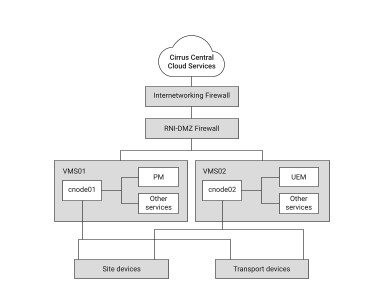
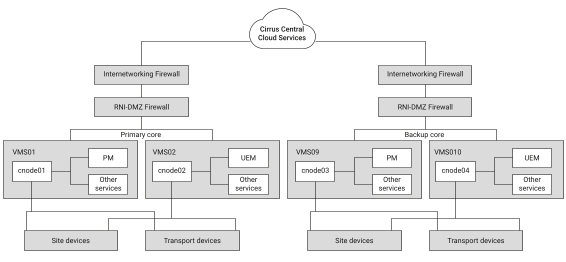
Cirrus Central in non-DSR System
Cirrus Central in DSR System

The Cirrus Node is a minimalistic container execution environment built on Red Hat Enterprise Linux. It provides the ability for a variety of lightweight applications to be executed. The containers that execute on each node are defined in and distributed through the cloud/internet connection.

The Cirrus Node is cloud connected and contains functionality to obtain all OS and application container updates directly from the cloud. Motorola will publish a schedule of Maintenance Windows for when a disruptive update is expected.

Intellectual Property and Regulatory Notices

Copyrights

The Motorola Solutions products described in this document may include copyrighted Motorola Solutions computer programs. Laws in the United States and other countries preserve for Motorola Solutions certain exclusive rights for copyrighted computer programs. Accordingly, any copyrighted Motorola Solutions computer programs contained in the Motorola Solutions products described in this document may not be copied or reproduced in any manner without the express written permission of Motorola Solutions.

No part of this document may be reproduced, transmitted, stored in a retrieval system, or translated into any language or computer language, in any form or by any means, without the prior written permission of Motorola Solutions, Inc.

Trademarks

MOTOROLA, MOTO, MOTOROLA SOLUTIONS, and the Stylized M Logo are trademarks or registered trademarks of Motorola Trademark Holdings, LLC and are used under license. All other trademarks are the property of their respective owners.

License Rights

The purchase of Motorola Solutions products shall not be deemed to grant either directly or by implication, estoppel or otherwise, any license under the copyrights, patents or patent applications of Motorola Solutions, except for the normal nonexclusive, royalty-free license to use that arises by operation of law in the sale of a product.

Open Source Content

This product may contain Open Source software used under license. Refer to the product installation media for full Open Source Legal Notices and Attribution content.

European Union (EU) and United Kingdom (UK) Waste of Electrical and Electronic Equipment (WEEE) Directive

The European Union's WEEE directive and the UK's WEEE regulation require that products sold into EU countries and the UK must have the crossed-out wheelie bin label on the product (or the package in some cases). As defined by the WEEE directive, this crossed-out wheelie bin label means that customers and end users in EU and UK countries should not dispose of electronic and electrical equipment or accessories in household waste.

Customers or end users in EU and UK countries should contact their local equipment supplier representative or service center for information about the waste collection system in their country.

Disclaimer

Please note that certain features, facilities, and capabilities described in this document may not be applicable to or licensed for use on a specific system, or may be dependent upon the characteristics of a specific mobile subscriber unit or configuration of certain parameters. Please refer to your Motorola Solutions contact for further information.

© 2026 Motorola Solutions, Inc. All Rights Reserved

Contact Us

The Centralized Managed Support Operations (CMSO) is the primary contact for technical support included in your organization's service agreement with Motorola Solutions. To enable faster response time to customer issues, Motorola Solutions provides support from multiple countries around the world.

Service agreement customers should be sure to call the CMSO in all situations listed under Customer Responsibilities in their agreement, such as:

  • To confirm troubleshooting results and analysis before taking action

Your organization received support phone numbers and other contact information appropriate for your geographic region and service agreement. Use that contact information for the most efficient response. However, if needed, you can also find general support contact information on the Motorola Solutions website, by following these steps:

  1. Enter motorolasolutions.com in your browser.
  2. Ensure that your organization's country or region is displayed on the page. Clicking or tapping the name of the region provides a way to change it.
  3. Select Support on the motorolasolutions.com page.

Documentation Portal

The Motorola Solutions (MSI) Documentation Portal is an online platform where you can find all the user documentation in one place, go to https://motr.la/docs.

You can provide feedback, questions, or comments for any publication or article by selecting the feedback icon. See Providing Feedback.

Learning Center

To discover the many learning opportunities within the Motorola Solutions (MSI) Learning Center, go to https://learningcenter.motorolasolutions.com/.

Collapse the table of contents

Expand the table of contents

Expand or collapse the topics inside the table of contents